KDP Office Tasks Planner Canva
Imagine opening a planner that doesn’t just hold your tasks—but actively supports how you think, prioritize, and execute. That’s what the KDP Office Tasks Planner Canva delivers: a thoughtfully structured, print-ready interior designed for real-world office workflows—not theoretical productivity. It’s not another generic notebook with decorative borders and empty lines. This is a functional, tested, and purpose-built tool built from the ground up for professionals who manage projects, teams, calls, deadlines, and client follow-ups—often all before lunch.
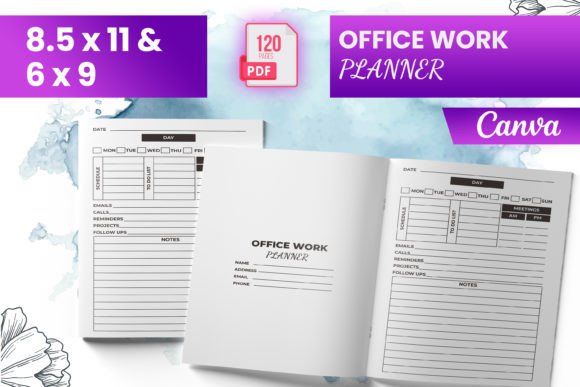
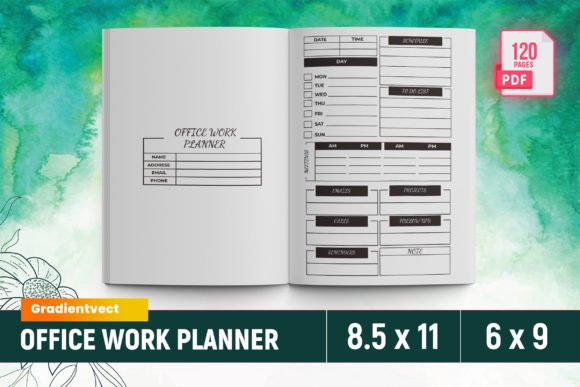
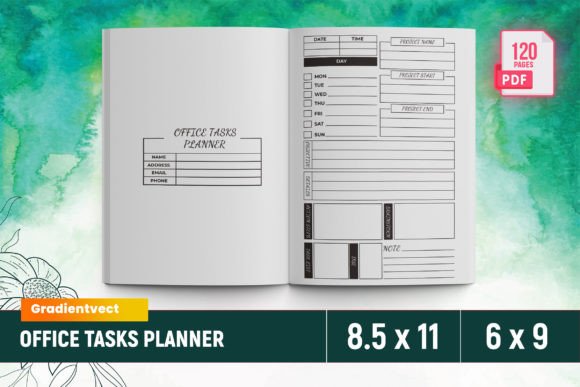
Visually, the KDP Office Tasks Planner Canva balances clean structure with quiet confidence. The layout uses generous white space, consistent margins, and subtle grid alignment—not flashy design, but intentional design. There are no distracting textures or overstyled headers. Instead, you’ll find crisp typography, clear section dividers, and smart use of hierarchy: bold headings for categories like Work Project Plan or Lead Follow-Up, lighter weights for subheadings and instructions, and generous line spacing in daily and weekly planners to reduce visual fatigue. It feels professional without feeling sterile—like a well-organized desk, not a corporate boardroom.
Designed for Real Work, Not Just Aesthetics
This isn’t a “pretty PDF” that falls apart on KDP. Every page includes bleed, meets Amazon’s 0.125″ margin requirements, and has been validated across multiple KDP preview modes. The included files—PDF, PNG, and JPG—are production-ready, meaning no last-minute cropping, resizing, or color profile panic before upload. You get 120 total pages, each sized at standard 8.5″ × 11″, with six to nine unique layouts repeated strategically across the planner (e.g., monthly spreads appear multiple times, as do call logs and meeting minutes). The intro page sets tone and usage context—not marketing fluff, but practical guidance on how to leverage each section.
Take the Meeting Minutes spread: it includes dedicated fields for attendees, decisions made, action items, and owners—with room to write, not just check boxes. Or the Work To-Do List: it separates urgent vs. ongoing tasks, includes priority flags, and leaves breathing room for notes—not a cramped list that invites abandonment after Day 2. Even the 2024 Calendar is optimized: full-year view first, then monthly grids with space for recurring reminders and cross-references to project plans. Nothing is decorative for decoration’s sake.
Where This Planner Fits in Your Creative & Business Workflow
If you’re a designer building custom planners for clients—or an entrepreneur launching your own KDP line—the KDP Office Tasks Planner Canva serves as both a finished product and a reliable design reference. Its structure teaches clarity: how to group related functions (e.g., Emails + Appointments + Deadlines under a shared “Time Management” logic), how to scale whitespace for readability across devices and print sizes, and how to maintain consistency without monotony.
For marketers and content creators, it’s a ready-made asset for lead magnets or client onboarding kits. Pair it with a branded cover (designed in Canva or Illustrator) and you’ve got a cohesive, high-perceived-value download—no need to reinvent daily planning logic. Bloggers and coaches can embed sections directly into workshops (“Use this Lead Follow-Up template to track your next 10 discovery calls”). Small business owners appreciate that it skips abstract goal-setting and goes straight to execution: Who called? When? What’s next? Who owns it?
Practical Tips for Getting the Most From It
Before uploading to KDP, open the PDF in Adobe Acrobat or Preview and zoom to 100%. Check that all text remains sharp—not pixelated—and that bleed extends fully to the edge on every page. Verify that fonts are embedded (they are, in this file) and that no elements sit too close to trim lines. If you plan to add your own branding, use the included PNGs—they retain transparency and layer cleanly in Canva or Photoshop.
When customizing, avoid over-designing. The strength of this planner lies in its restraint. If you change colors, stick to one or two complementary tones (navy + warm gray works well; avoid neon or low-contrast combos). If adding logos, place them consistently—top corner, same size, same opacity—on intro and section divider pages only. Resist the urge to insert icons everywhere; the existing layout already signals function through structure, not ornament.
And remember: this isn’t meant to be filled end-to-end. Its value increases when used selectively. Try starting with just three sections for your first week: Daily Planner, Work To-Do List, and Lead Follow-Up. See what sticks. Then gradually integrate Meeting Minutes or Project Plan as your workflow demands. The best office tools adapt to you—not the other way around.
Why This Works Where Others Don’t
Most free or low-cost planners fail at one of two things: they’re either too rigid (one-size-fits-all grids that ignore how people actually schedule calls or track leads), or too vague (blank pages disguised as flexibility). The KDP Office Tasks Planner Canva avoids both traps. It assumes competence—not perfection—in its user. It expects you’ll have overlapping deadlines, messy email threads, and meetings that spawn three new action items. So it gives you space for that complexity without chaos.
You’ll notice thoughtful details: the Contacts List includes fields for role, company, and last contact date—not just name and number. The Appointment Schedules spread shows time blocks in 30-minute increments, with room to note prep steps and follow-up triggers. Even the Monthly Planner aligns with the Daily and Weekly views so you can glance across time horizons without flipping back and forth.
This level of integration doesn’t happen by accident. It comes from watching how designers brief projects, how founders run standups, how solopreneurs juggle client emails and content calendars—and building a tool that mirrors those rhythms, not textbook ideals.
If you’ve ever abandoned a planner because it felt like homework instead of help, this one’s different. It doesn’t ask you to change how you work. It simply makes your current workflow easier to see, manage, and sustain.